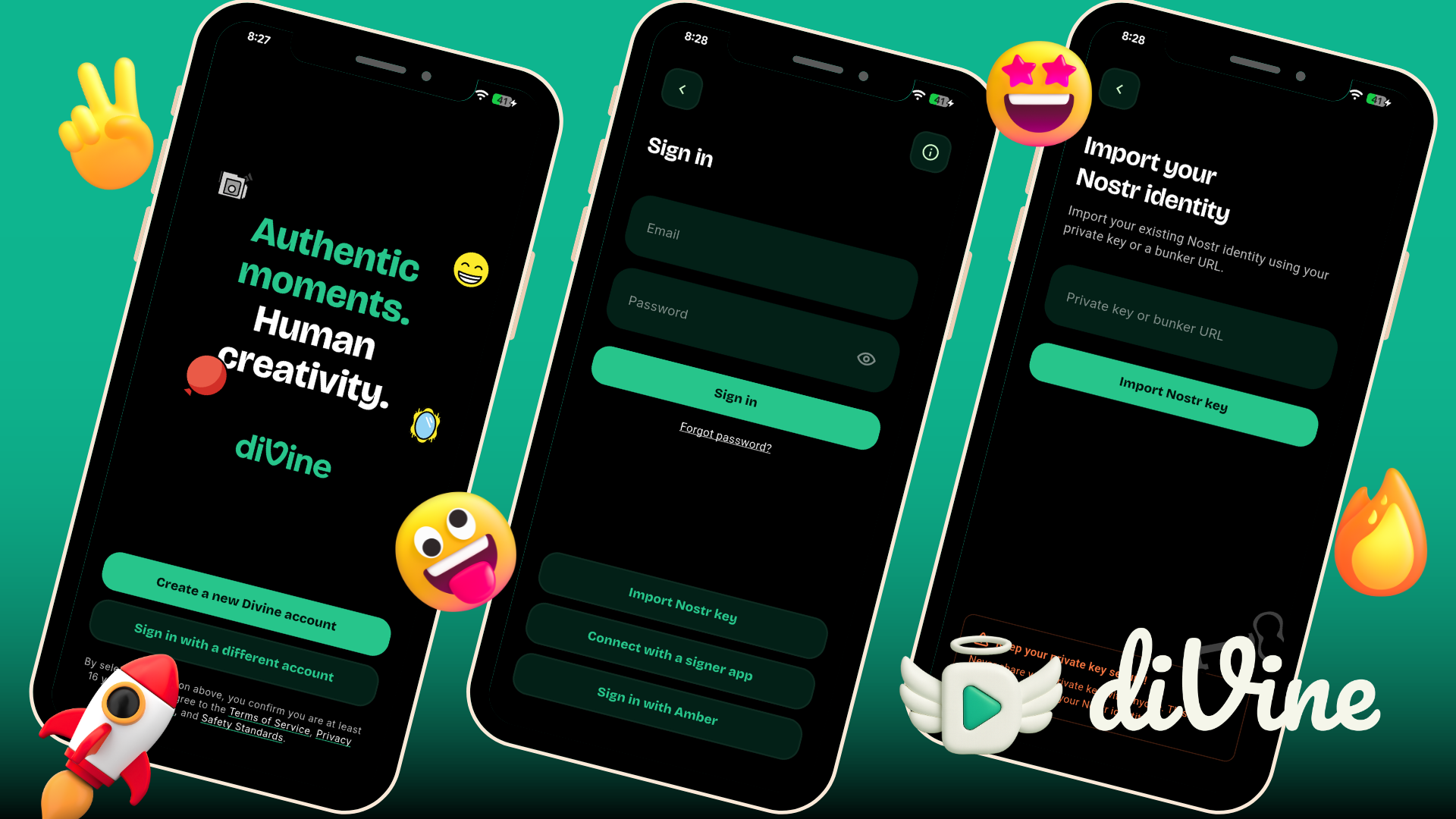
How to Log In to Divine Without an Invite Code (Using Nostr)
Divine launches today. No invite code? Skip it: create a free Nostr account on Ditto, then log in to Divine with your nsec — no waitlist.
Divine, the short-form video app built on Nostr, is live in the Apple App Store and Google Play today. Widely described as a spiritual successor to Vine, Divine is gated by invite codes at sign-up — but here's the trick most people don't know: you don't actually need one. There's a second way in. Log in with an existing Nostr account and you walk right past the invite-code requirement.
The 30-Second Shortcut
- Go to ditto.pub and sign up to get your nsec (Nostr login password).
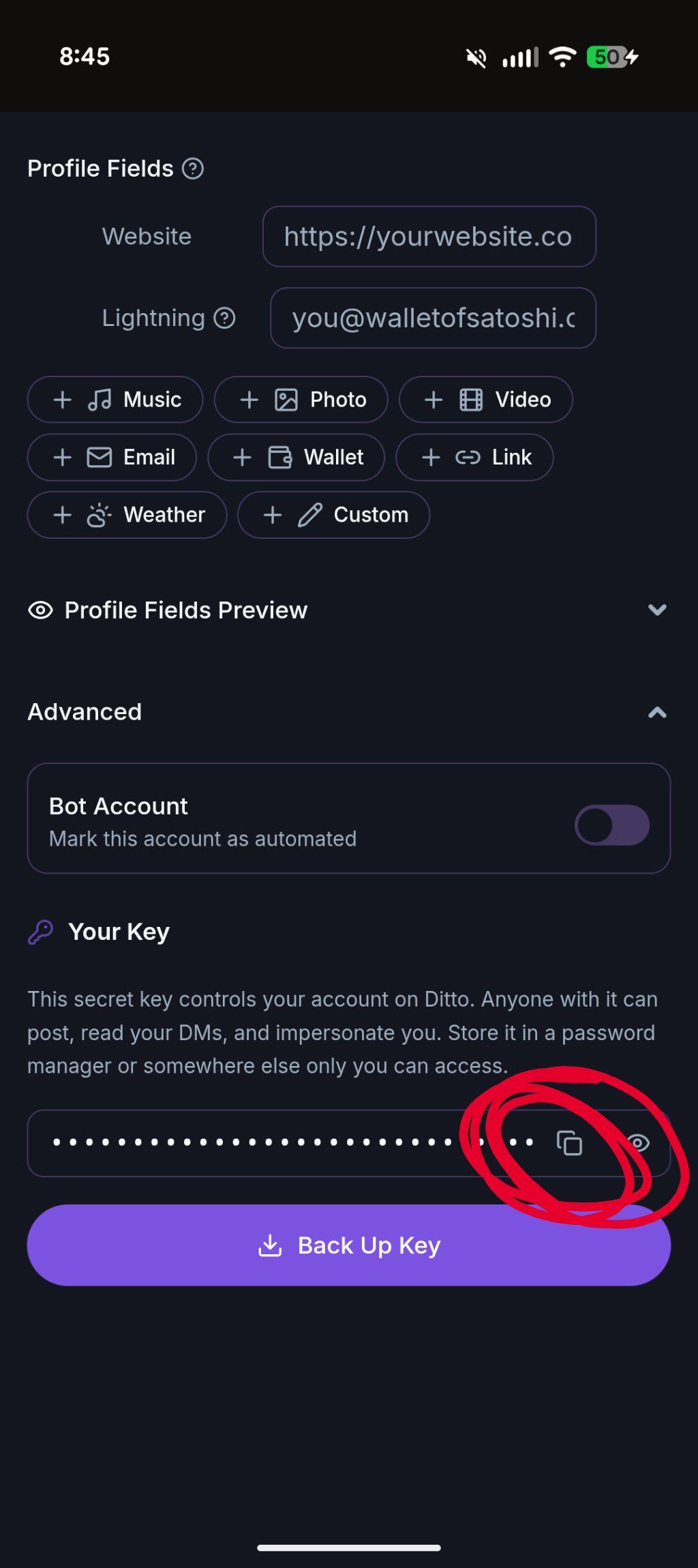
- Download your nsec during signup (tap Save Key), or copy it later from Profile Settings → Advanced.
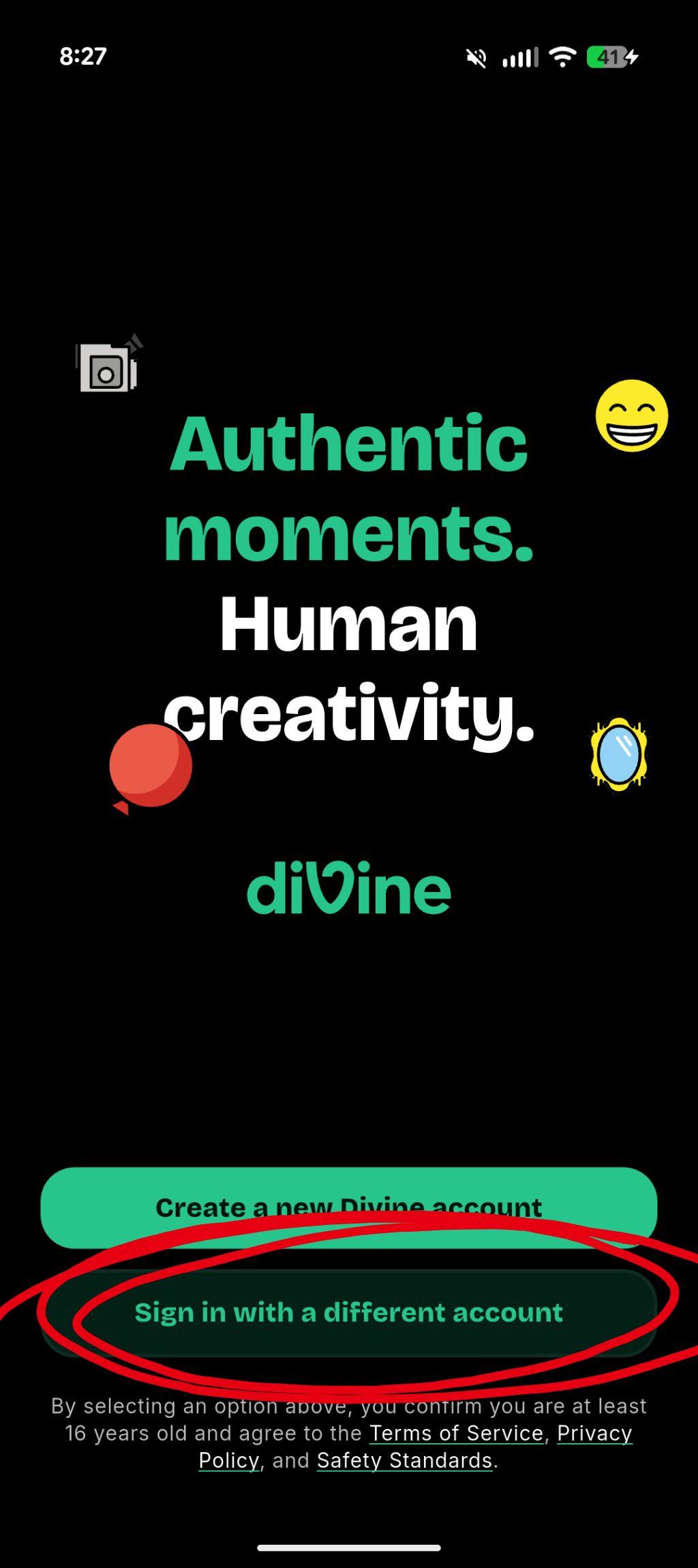
- Open Divine → tap Sign in with a different account → Import Nostr key → paste your nsec.
- You're in, and you can post to Divine with no invite code. This is a benefit of decentralized tech like Nostr — not a bug or a hack.
Want the full walkthrough with screenshots? Keep reading.
How to Log In to Divine With Nostr (Step by Step)
We'll use Ditto to create a free Nostr account, then use that account to log in to Divine. We're suggesting Ditto because it's built by our team at And Other Stuff, but this same flow works with any Nostr app — you can discover more at nostrapps.com.
Step 1: Create a Free Nostr Account on Ditto
Head to ditto.pub in any browser — desktop or mobile, both work. Or download the Ditto app from the Google Play or Apple App Store.
 App Store
 Google Play
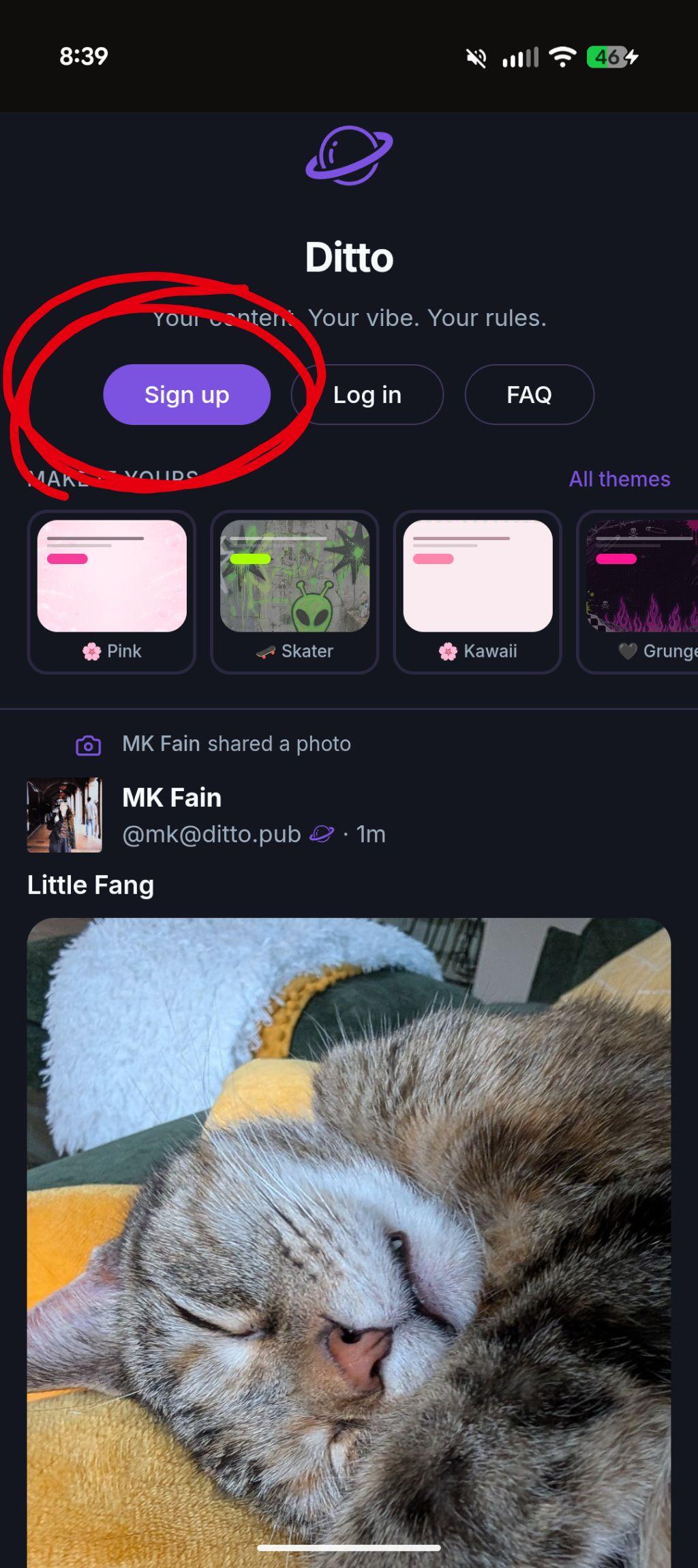
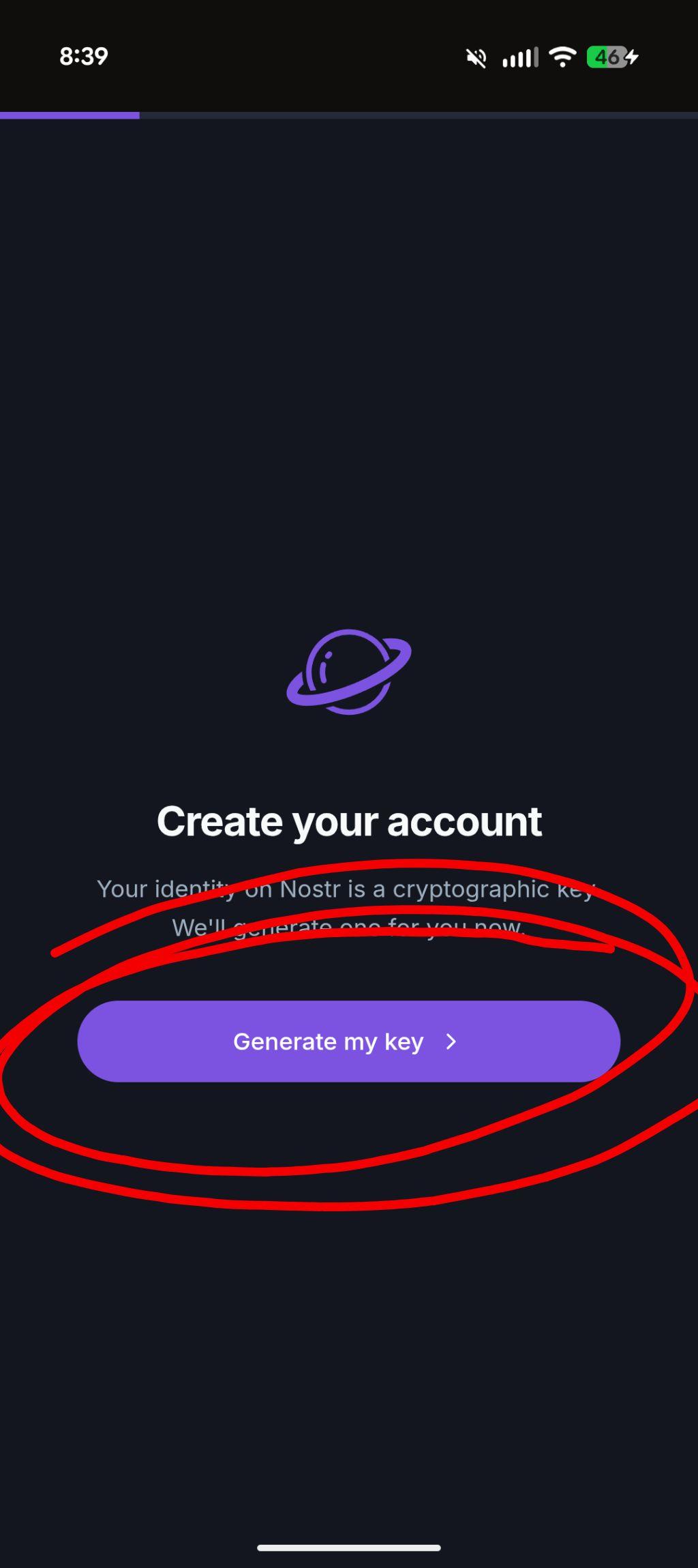
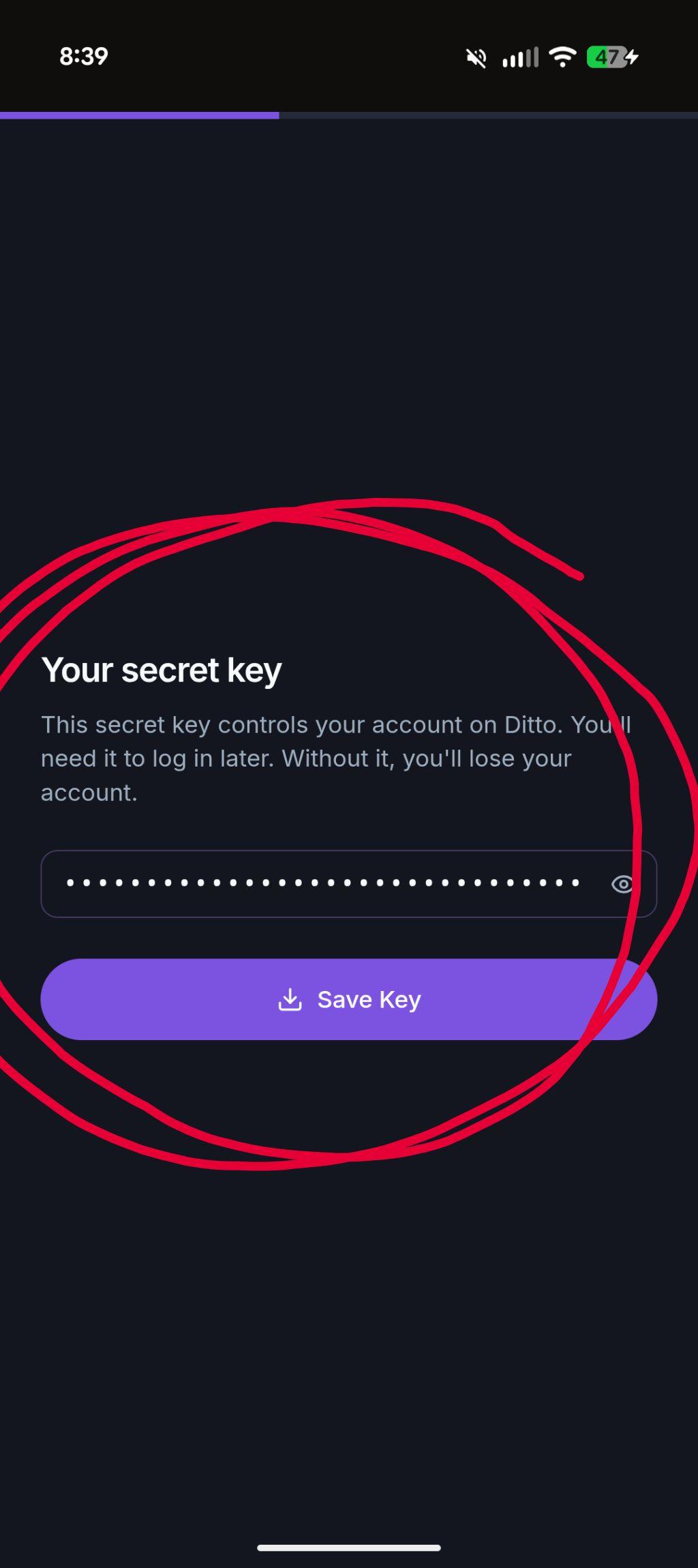
Click Sign up, then on the next screen tap Generate my key. Ditto creates a fresh Nostr key pair for you — no email, no phone number, no personal info required. Once you have your key, tap Save Key on the "Your secret key" screen to download it as a file — this is your nsec, the credential you'll paste into Divine in Part 2.
Once you're signed up, you can already use Ditto to view and comment on divines — check out the live feed at ditto.pub/vines. You'll also see content from all around Nostr in your home feed.
How to Get Your Nostr Secret Key From Ditto Later
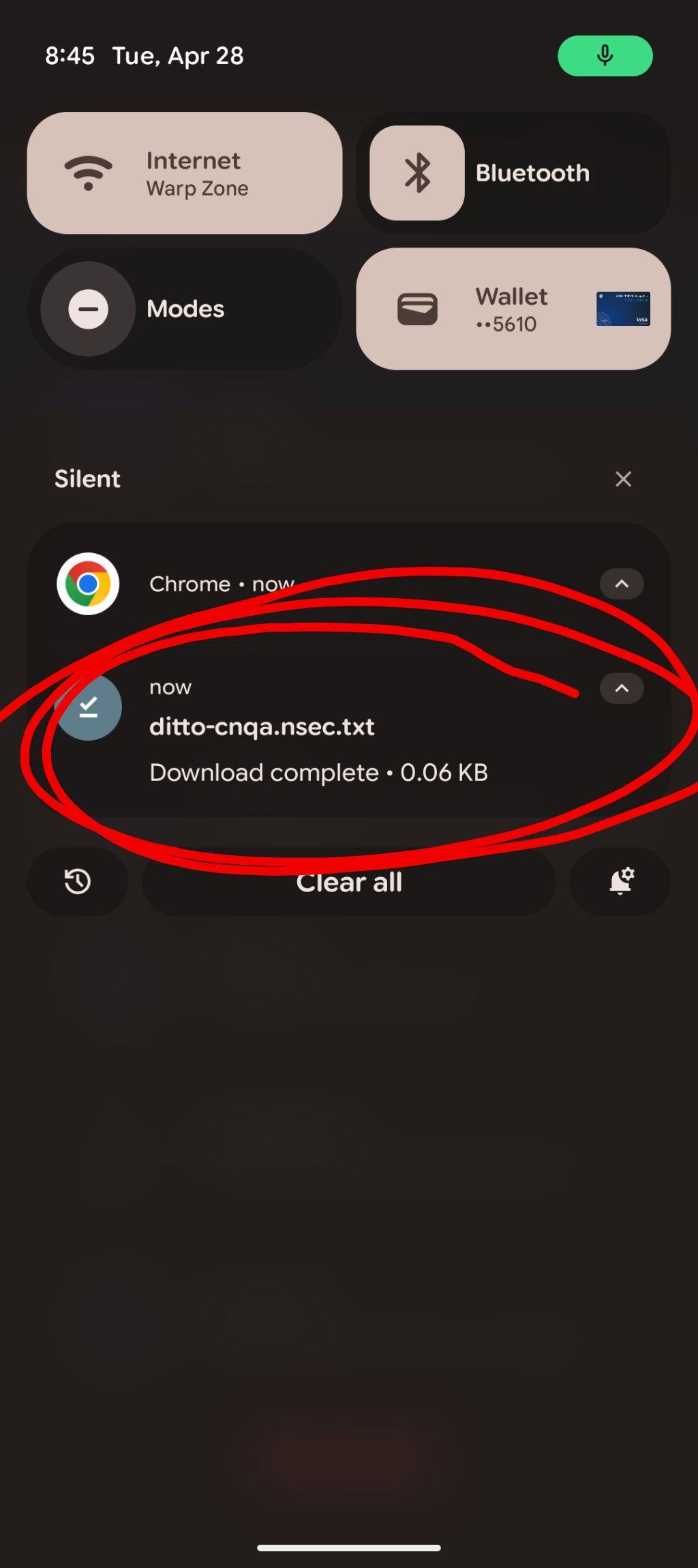
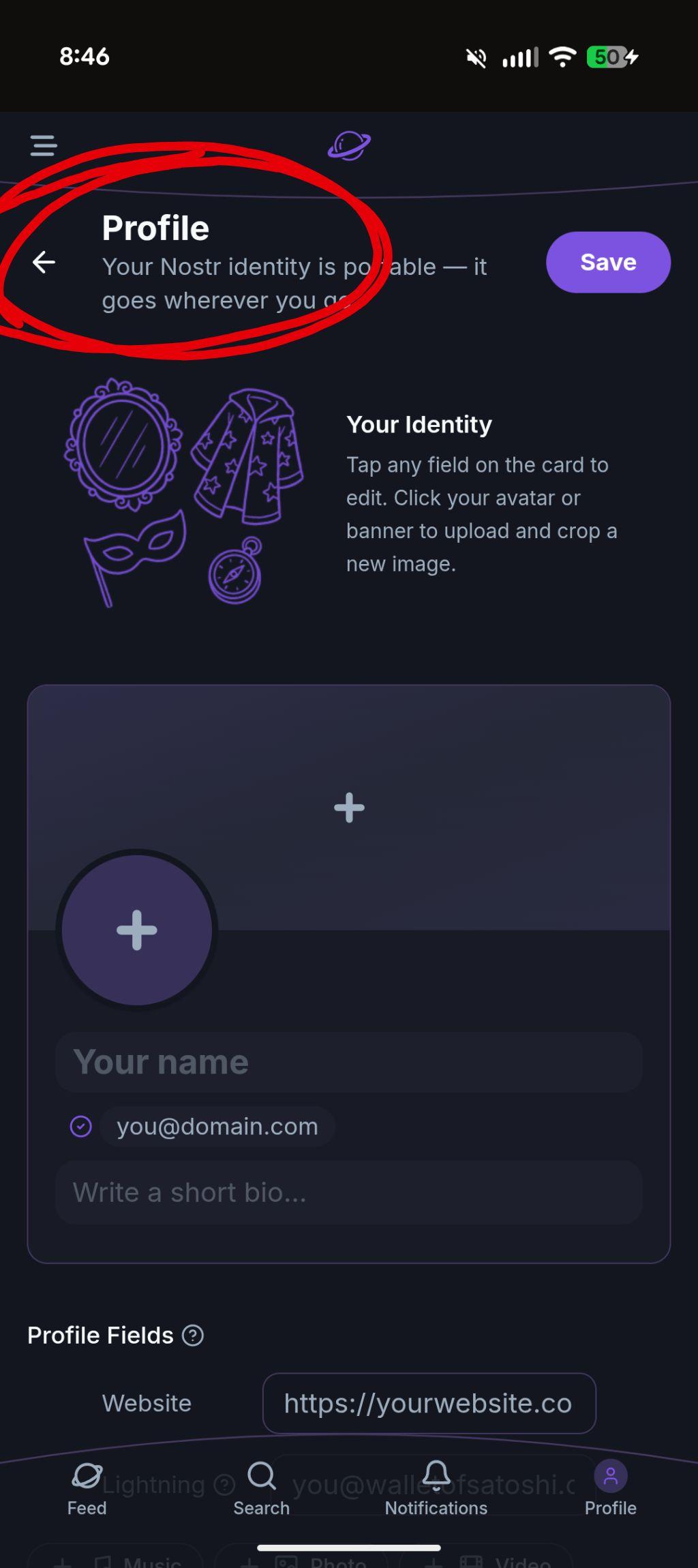
If you dismissed the signup screen or want to copy your nsec again later, you can always find it under Profile Settings → Advanced. Tap the copy icon next to "Your Key" to copy the nsec to your clipboard, or tap Back Up Key to download it as a file again. (On Android, your key file saves with a download notification like the one shown; on iPhone it saves to the Files app.)
Treat Your nsec Like a Master Password
Anyone who has your nsec can post as you, read your DMs, and impersonate you. Store it in a password manager like 1Password, Bitwarden, or Dashlane — not a plain-text note, not an email to yourself, not a screenshot. Don't share it with anyone, ever.
Step 2: Download the Divine App
Grab the Divine app from your app store of choice:
- divine.video (links to both stores)
- Search "Divine" in the Apple App Store (iOS)
- Search "Divine" in the Google Play Store (Android)
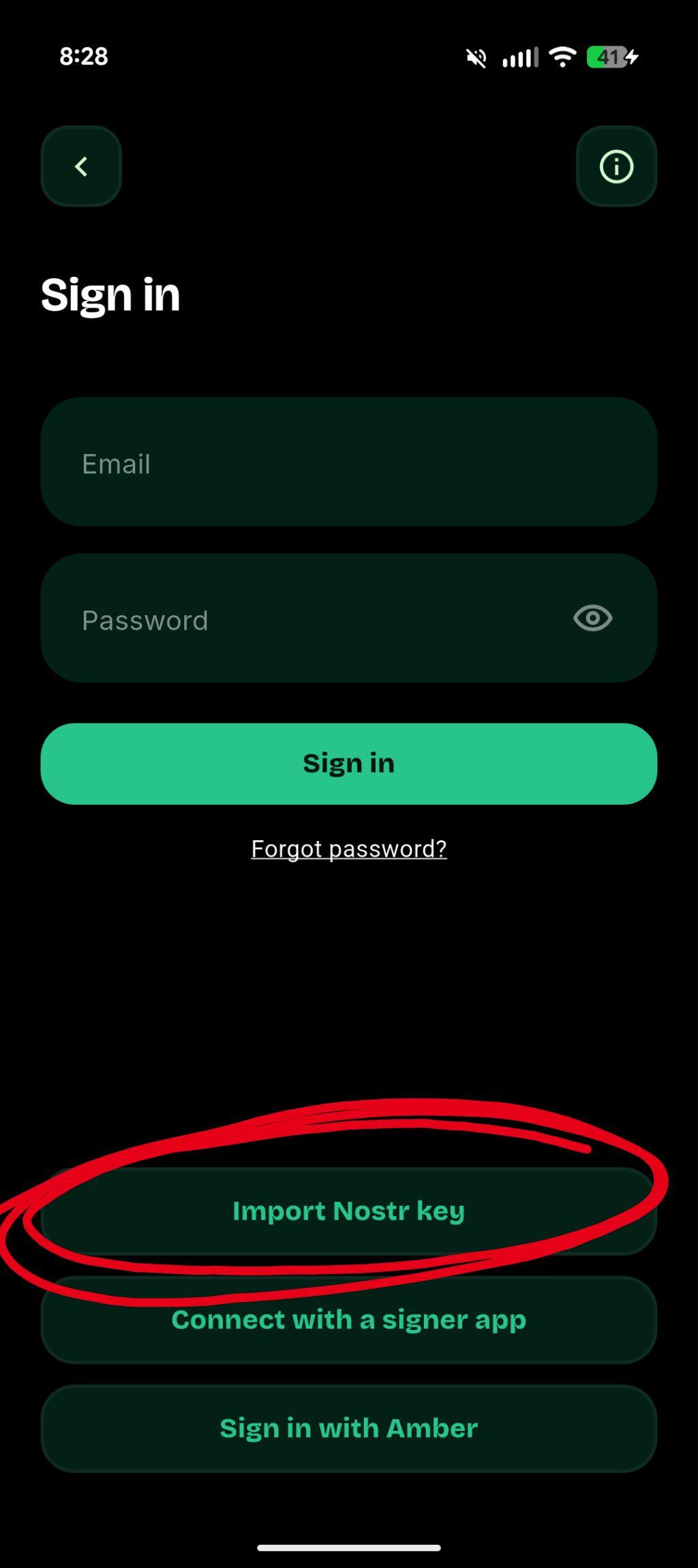
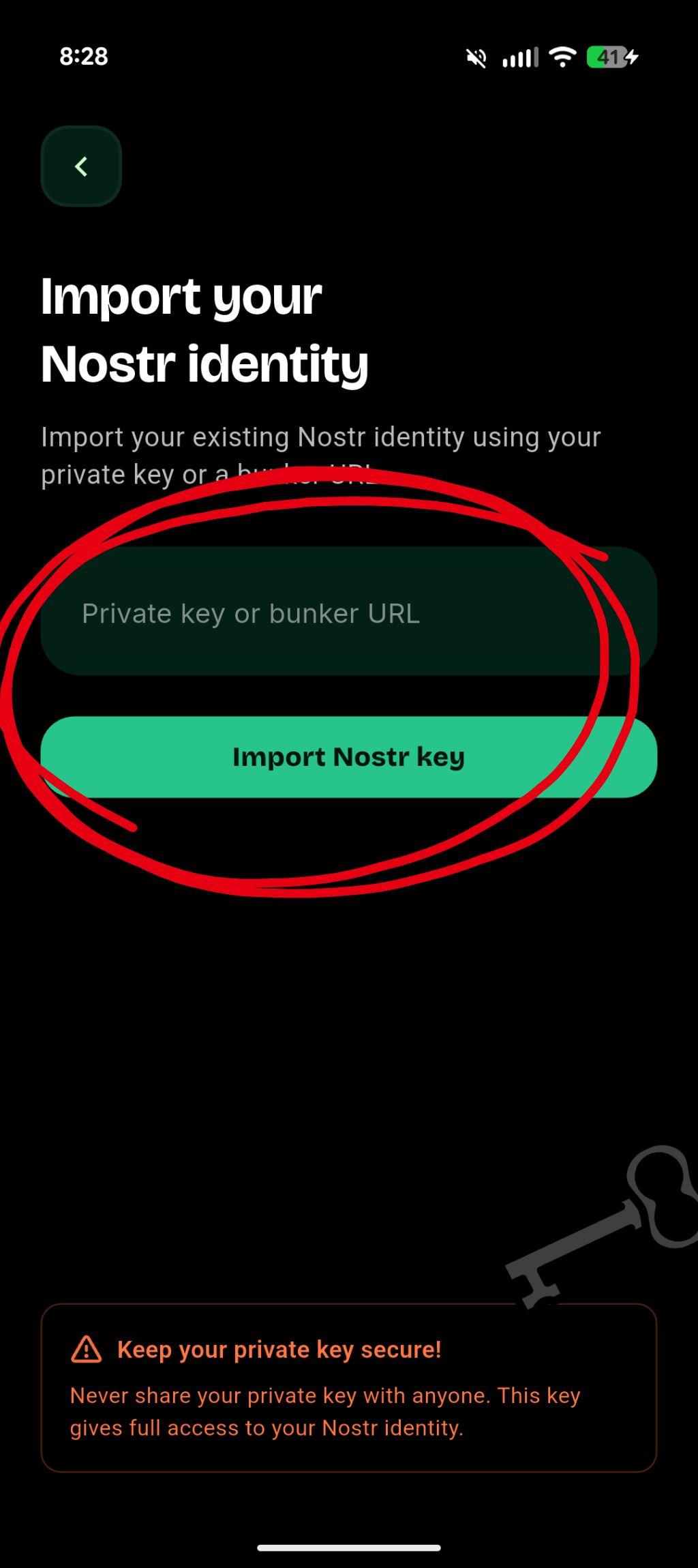
Step 3: Log In With Your Nostr nsec on Divine
Open Divine and tap through these three screens:
- Welcome screen ("Authentic moments. Human creativity.") — tap Sign in with a different account at the bottom. (The other button, Create a new Divine account, is the one that requires an invite code.)
- Sign in screen — ignore the email and password fields at the top, scroll to the bottom, and tap Import Nostr key.
- Import your Nostr identity screen — paste your nsec (the long string starting with
nsec1…that you saved from Ditto) into the Private key or bunker URL field, then tap the green Import Nostr key button.
That's it. You're in. Your Ditto username, avatar, posts, and followers all come with you — because they live on Nostr, not on any one app.
Protect Your nsec Like It's Your Password (Because It Is)
Now that your Nostr key is doing real work for you, take two minutes to lock it down properly:
Do This
Never Do This
• Send your nsec in DMs, email, or texts
• Paste it into a random website that asks for it
• Store it in a plain-text notes app or Google Doc
• Share it with "support" — no legit support team will ever ask for your nsec
For the full deep-dive, see our guide on how to store and manage your Nostr private key. And if you eventually decide to start fresh inside Divine instead, we have a separate guide on how to export your Nostr keys from Divine.
Frequently Asked Questions
Divine is built on Nostr, a decentralized social protocol. That means:
- One account, every app. The account you make on Ditto works on Divine — and on Damus, Primal, Amethyst, and dozens more.
- No phone number or email required. You sign up with a username and get a cryptographic key pair.
- You own your identity. No company can lock you out or delete your account.
- No invite codes, ever. Nostr is permissionless — the invite code is a Divine-specific launch gate, and Nostr login bypasses it.
No. Divine's sign-up flow requires an invite code, but signing in with an existing Nostr account does not. Create a Nostr account anywhere (we recommend Ditto), then log in to Divine with your nsec — that's it.
No Invite Code? No Problem.
One Nostr key, every app. That's the whole idea.
Related Reading
- What is Nostr? The Decentralized Protocol Powering Divine
- How to Export Your Nostr Keys from Divine
- Divine & Open Source Tech
- How to Store and Manage Your Nostr Private Key
- Nostr 101: A Beginner's Guide
- Announcing Ditto 2
- Ditto Updates: April 2026
Welcome to Divine. Welcome to Nostr.
Soapbox is funded by grants and donations, not ads or data sales.
Everything we build is open source and belongs to the community. Help us keep it that way.