How to Export Your Nostr Keys from Divine (Backup Guide)
Step-by-step guide for Divine creators: export your Nostr private key (nsec), back it up safely, and use the same account on Ditto, Damus, and more.
Your Private Key is Everything
Your Nostr private key (nsec) is your identity on Divine and across the entire Nostr network. If someone gets your private key, they can impersonate you. If you lose it, you lose access to your account forever. There is no password reset, no customer support, no account recovery.
Divine, the short-form video app often called the spiritual successor to Vine, launches today on iOS and Android. If you signed up for Divine, you now have a portable Nostr identity — one that works across the entire Nostr ecosystem. But only if you export and back up your key. This guide shows you how.
If you came in the opposite way — using an existing Nostr key to bypass the invite-code requirement — see how to log in to Divine without an invite code.
Why Export Your Keys?
When you created your Divine account, you were given a unique Nostr identity. This identity isn't locked to Divine—it's yours to use across the entire Nostr ecosystem. By exporting your keys, you can:
- Back up your identity: Protect yourself from losing access if you switch phones or uninstall the app
- Use other Nostr apps: Your Divine identity works with Ditto, Damus, Primal, Amethyst, and hundreds of other Nostr apps
- Store your key securely: Move your key to a password manager, remote signer, or write it down for safekeeping
- Use browser extensions: Sign in to web-based Nostr apps using signers like Alby or Soapbox Signer
Exporting from the Divine Mobile App
Divine for Android and iOS includes built-in key management. You can export and backup your private key directly from the app settings.
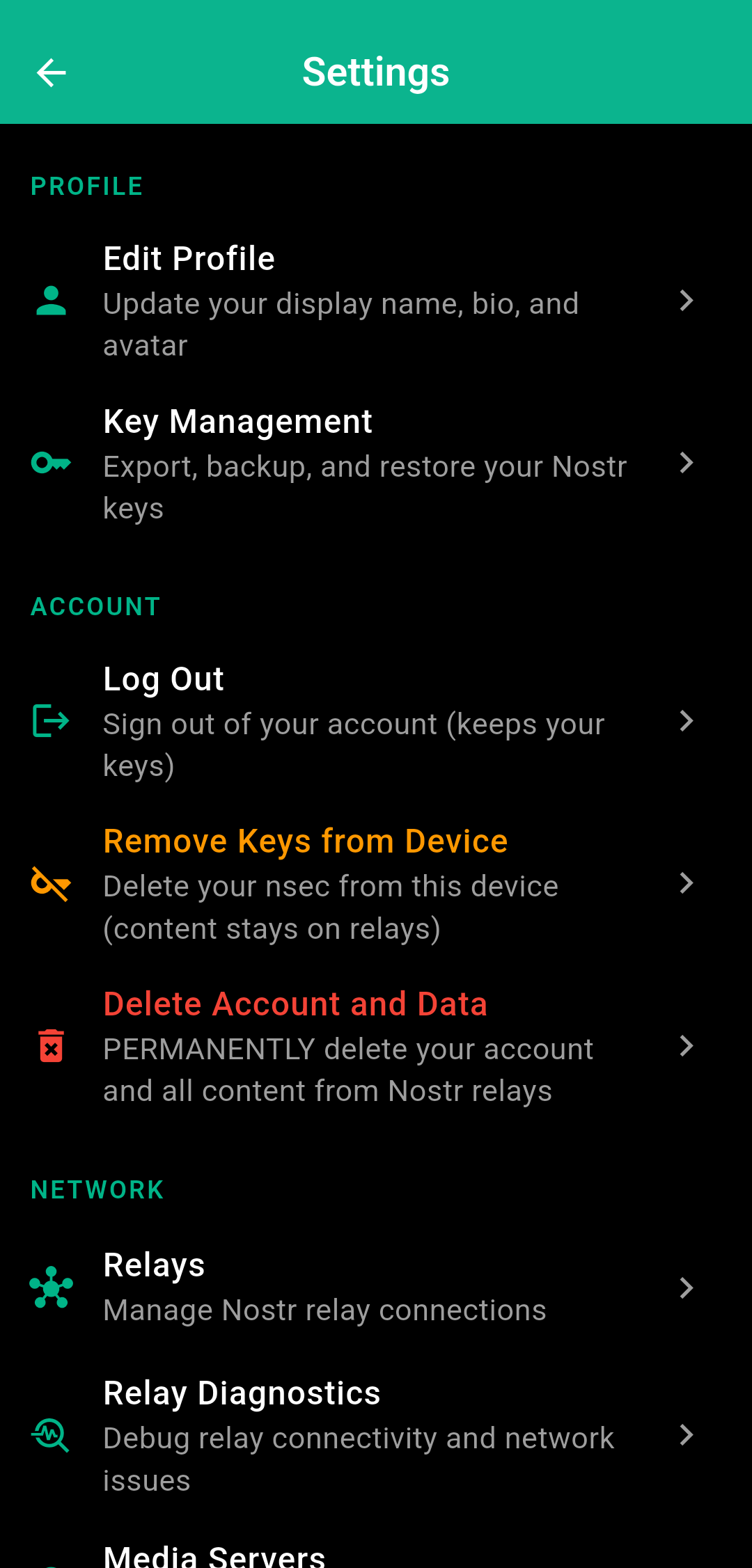
Divine Mobile App Key Export
How to Export Your Key:
- Open Divine and go to Settings
- Under the Profile section, tap Key Management
- In the Nostr Keys screen, find the Backup Your Key section
- Tap Copy My Private Key (nsec) to copy your key to the clipboard
- Immediately paste it into a secure password manager or write it down
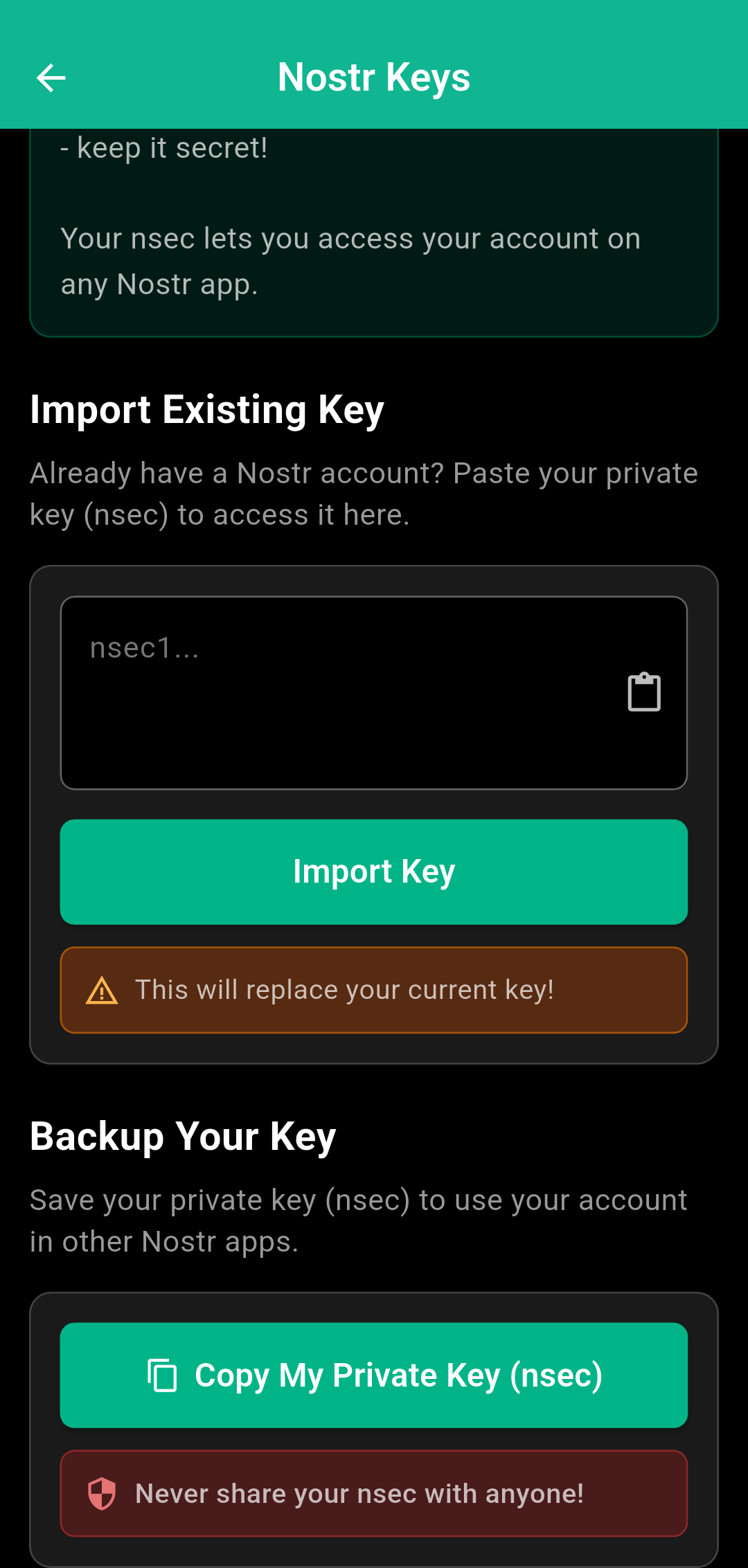
Note: You can also import an existing key if you already have a Nostr account. This will replace your current key in Divine.
Get DivineExporting from Divine Login
If you signed up using Divine Login with email and password, you can export your keys from the settings.
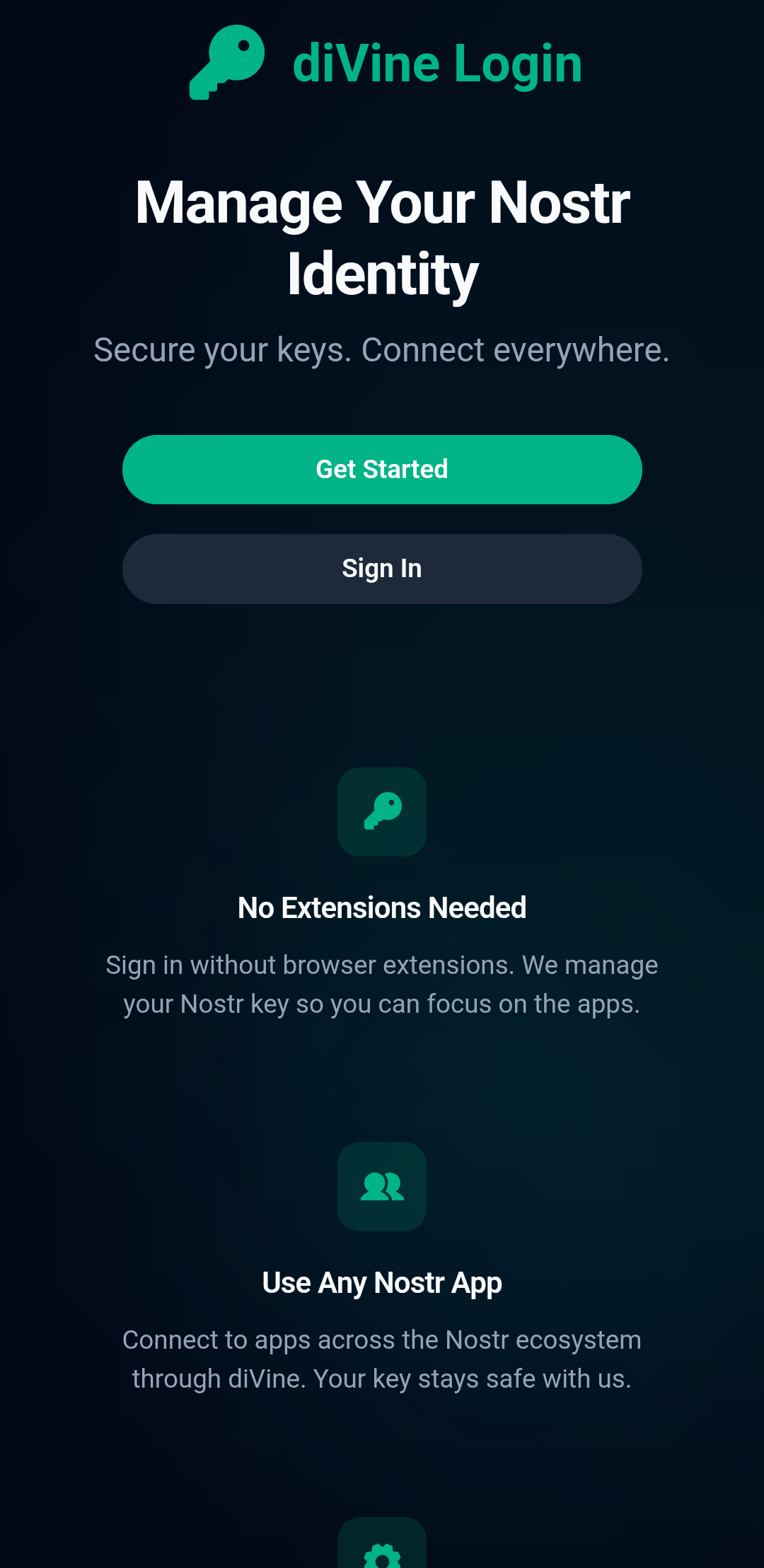
Divine Login Key Export
Key Features:
- • No Extensions Needed: Sign in without browser extensions—Divine manages your key so you can focus on the apps
- • Use Any Nostr App: Connect to apps across the Nostr ecosystem through Divine. Your key stays safe with Divine Login
- • Manage Connected Apps: View, add, and remove Nostr apps from your dashboard
- • Get Bunker URLs: Generate NIP-46 bunker URLs to connect with compatible apps
Exporting Your Private Key:
- Log in to login.divine.video
- Navigate to Security Settings
- Click Unlock Security Settings and enter your password
- Once verified, you can view and export your private key (nsec)
- Use Copy to Clipboard to copy your key securely
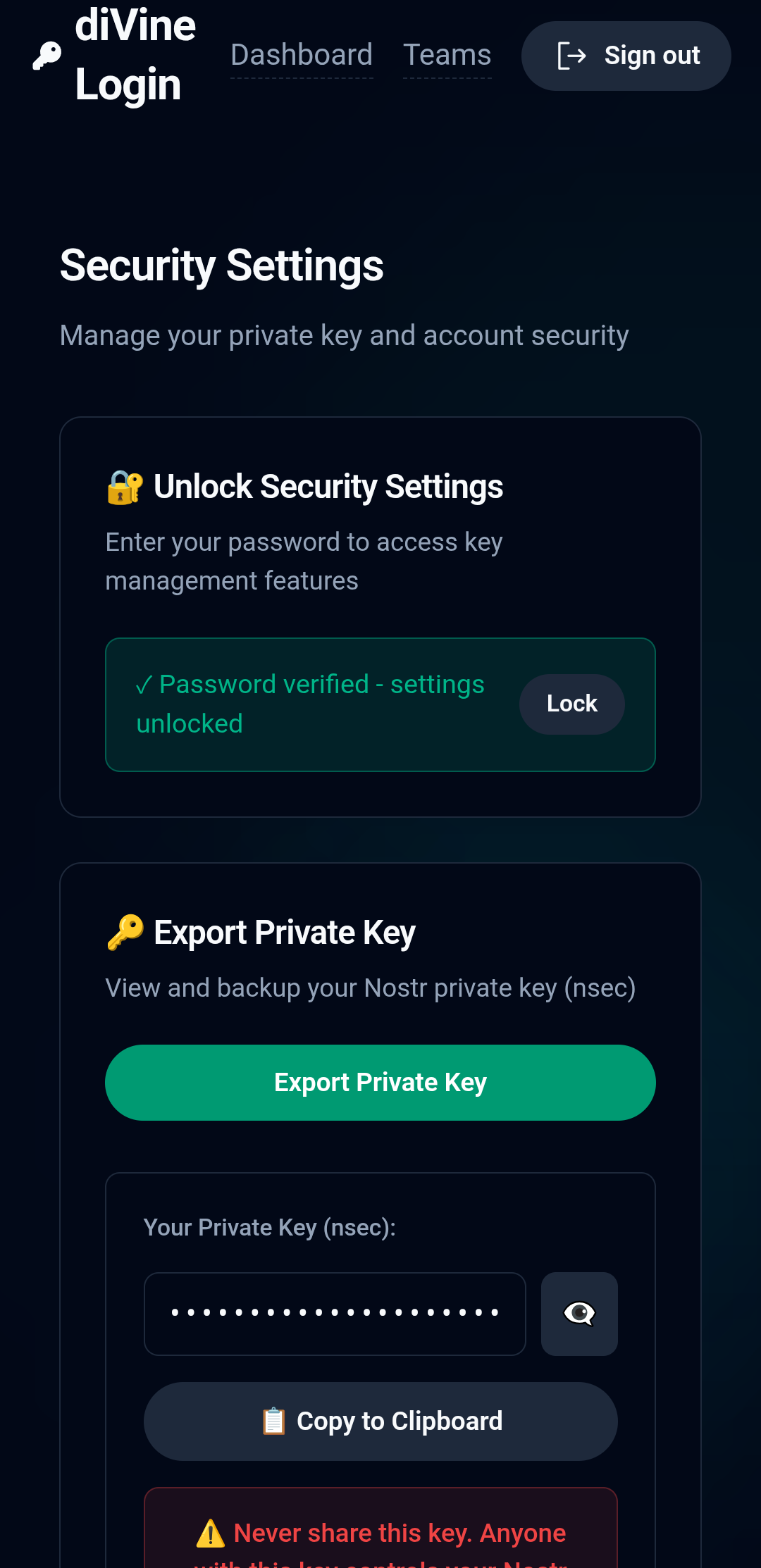
Security Note: Never share your private key. Anyone with this key controls your Nostr identity. Only export your key when you need to back it up or use it in another trusted app.
Where to Store Your Exported Key
Once you've exported your key, you need to store it securely. Here are the best options:
Recommended Storage
• Password Manager: Use 1Password, Bitwarden, or Dashlane for encrypted storage
• Paper Backup: Write it down and store in a fireproof safe or safety deposit box
• Multiple Locations: Keep copies in different physical locations
• Browser Signer: Import into Alby or Soapbox Signer for web apps
• Remote Signer: Use nsec.app, Amber, hardware devices, or other bunker applications for multi-device access
Never Do This
• Store in unencrypted text files or notes apps
• Send through email, messaging apps, or social media
• Store in cloud storage (Google Drive, Dropbox, etc.)
• Take screenshots of your key
• Share with anyone, even "support" claiming to help
Using Your Key with Other Nostr Apps
Once you have your private key (nsec), you can use it to sign in to any Nostr app. Your Divine followers, following list, and content will be accessible across the entire Nostr network.
Popular Apps to Try
- Ditto - Community platform builder for decentralized communities
- Primal - Social networking with discovery features and Bitcoin wallet
- Damus - Clean iOS client for text and media
- Amethyst - Feature-rich Android client
- noStrudel - Advanced web client for power users
Pro Tip: Use a Signer App
Instead of pasting your private key into every app, consider using a signer app like Amber (Android), a browser extension like Alby or Soapbox Signer, or a remote signer like nsec.app. These apps hold your key securely and sign events for other apps without exposing your key directly.
What If You Lose Your Key?
If you lose your private key and haven't backed it up, your account is permanently lost. There is no recovery option. This is why backing up your key immediately after exporting is critical.
If your key is compromised (someone else has it), you'll need to:
- Create a new Nostr account with new keys
- Announce from your new account that your old account was compromised
- Rebuild your following list and notify your followers
For more details on key security, compromised key recovery, and advanced key management strategies, see our comprehensive guide: How to Store and Manage Your Nostr Private Key.
Take Control of Your Identity
Your Divine key is your passport to the entire Nostr ecosystem. Export it, back it up, and explore what decentralized social media has to offer.
Frequently Asked Questions
Open the Divine app, go to Settings, then tap Key Management under the Profile section. In the Nostr Keys screen, you'll see a Backup Your Key section with a Copy My Private Key (nsec) button.
An nsec is your Nostr private key — the credential that proves you own your Nostr account. It looks like a long string starting with nsec1…. Treat it like a master password: anyone who has it can post as you.
Additional Resources
- How to Log In to Divine Without an Invite Code
- What is Nostr? The Protocol Powering Divine
- How to Store and Manage Your Nostr Private Key
- Nostr 101: A Beginner's Guide
- Divine - Mobile app for Android & iOS
- Divine Login - Email and password key management
Your keys, your identity, your creative freedom.
Soapbox is funded by grants and donations, not ads or data sales.
Everything we build is open source and belongs to the community. Help us keep it that way.