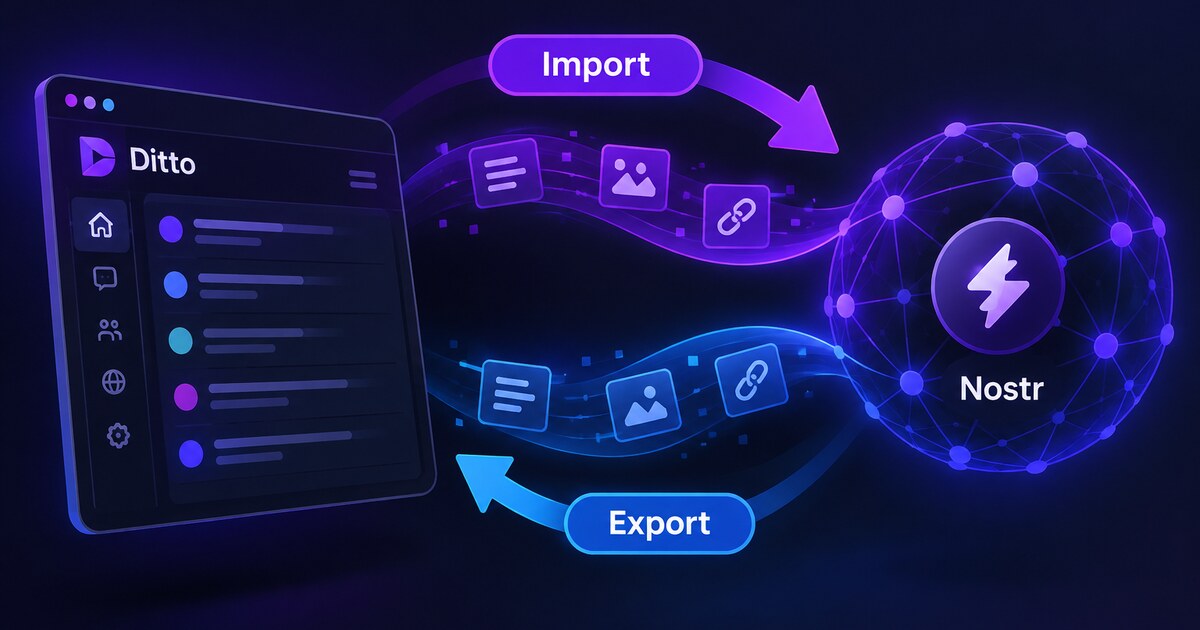
Leave anytime. Take everything: how Ditto’s Import & Export works
Your entire post history in one file you own, and one click to push it back to any relay. A walkthrough of Ditto's Import & Export, why it exists, and how to use it.
On Big Tech platforms, exporting your data is designed to be unpleasant. You click the button, wait days for an email, and receive a zip file of JSON you can’t do much with. The friction is intentional. A platform that’s easy to leave has to keep earning you. Lock-in is a feature, for them.
Ditto is a Nostr client, and Nostr inverts this model. There is no server holding your history. Your account is a keypair, and your posts live on relays, a distributed set of servers you choose. Any of them can be replaced.
That raises a question nobody on a Big Tech platform has to ask: where does my history actually live, and how do I take it with me?
Ditto answers this with an Import & Export system in Settings. It gathers everything you’ve ever posted into a local database you can save as a file, and pushes a saved archive back out to the network whenever you want. It’s one of my favorite things we’ve shipped: it turns data ownership into a file on your disk.
Exporting: grab your entire history
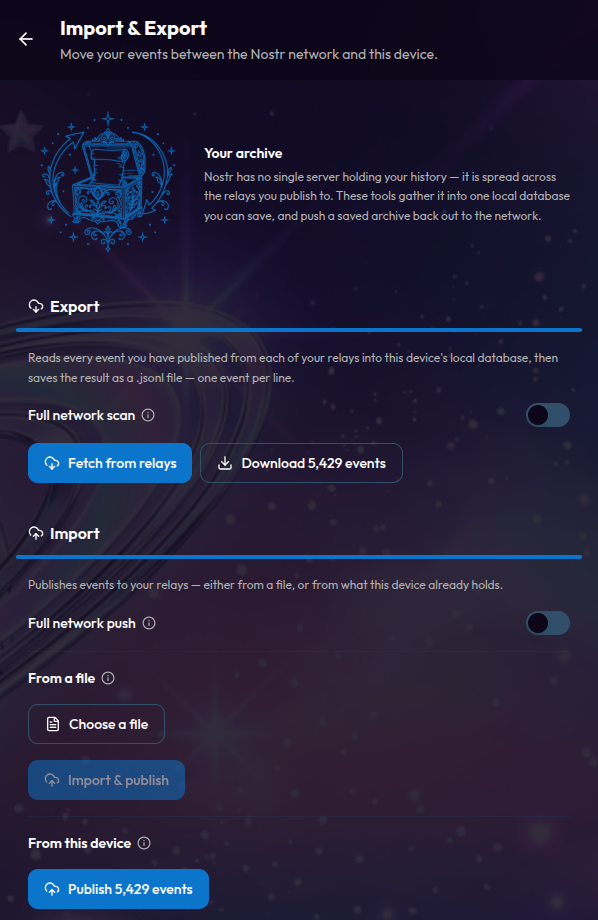
Open Settings → Import & Export. The page explains what it does: “Nostr has no single server holding your history. It is spread across the relays you publish to. These tools gather it into one local database you can save, and push a saved archive back out to the network.”
- Click Fetch from relays. Ditto reads every event you’ve published from each of your relays into the device’s local database.
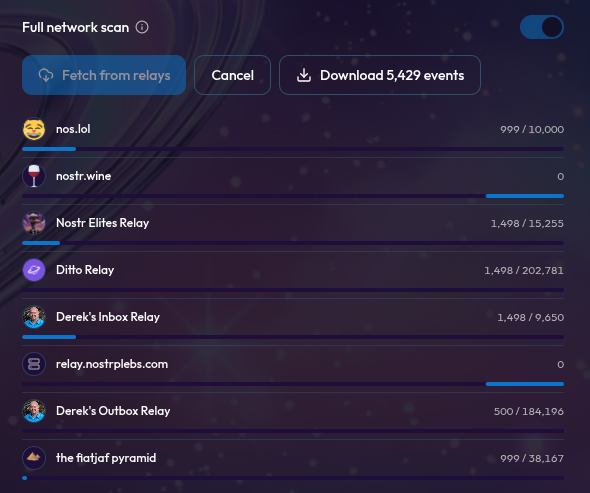
- Watch the per-relay progress. Each relay gets its own row with name, icon, a live
processed / totalcounter, and the number of events received. - When it finishes you’ll see “N events received from relays.” Click Download .jsonl.
The file downloads straight from the browser. On mobile builds it lands in the app’s Documents folder, visible in iOS Files.
What’s in the file
A .jsonl file, one event per line, in canonical Nostr format: id, pubkey, created_at, kind, tags, content, sig. The filename tells you what it is: nostr-export-npub1xxxxxxxxxx-2026-08-23.jsonl.
It’s everything you’ve signed: notes, reactions, follows, relay lists, long-form posts, deletions. All event kinds, no exclusions. If a relay still has it and you signed it, it comes down.
Two caveats. Media files aren’t bundled, so you get the events and their links, not the blobs. And export completeness is “what your relays still hold.” If every relay pruned a post, that post is gone from the network. That’s the main reason to keep this file. It’s also a good reason to run your own relay, so your history lives on infrastructure you control.
The Full network scan toggle
By default, each relay is only asked for events newer than your last sync. Flip on Full network scan when you’ve added a relay that might hold older posts, and Ditto re-reads your whole history from every relay. Use it when you want a complete re-scan instead of a quick backup.
Importing: put your history back, or move it somewhere new
The import side is what makes this useful beyond backups.
From a file
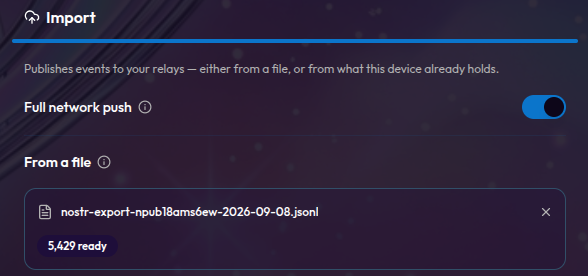
Pick any .jsonl archive: the one you exported, a backup from another machine, even a hand-edited file. Ditto checks every line. Events with valid signatures publish as-is. Unsigned lines become templates you sign on the way through. The file card shows the counts before anything happens: N ready / N to sign / N warnings.
Signing happens one event at a time, NIP-07/NIP-46-friendly, so your browser extension or remote signer approves each event. No blanket key handover. Import & publish does the rest, with the same per-relay progress you get on export.
From this device: fill in a new relay
Say you add a fresh relay, or one of yours dies and comes back empty:
- Add the relay in your relay settings, marked as write.
- Come back to Import & Export and hit Publish N events under From this device.
Ditto offers your entire local archive to that relay. No file involved. Your history now lives on a server you added ten minutes ago.
Resume: surviving bad connections
Exports and imports over flaky networks don’t start over. Ditto remembers, per relay, what it already pulled (a timestamp watermark) and what each relay already accepted (up to 5,000 event IDs per relay), so a retry only sends what’s missing. Relay rows show “# already sent, skipped.”
If you want to re-send everything, say you’re pushing to a relay that lost data, flip on Full network push and Ditto sends the whole archive again.
What won’t be re-signed
Lines signed by another account are never re-signed and never published. You can’t sign someone else’s events without becoming their author. They’re counted as warnings, and Ditto explains why. Authorship is cryptographic.
Why this matters
On Nostr, data portability is the architecture. You own your identity (keys), you choose your infrastructure (relays), and now you can hold your entire history in one file and re-publish it to the network whenever you want.
Leave anytime. Take everything. On Nostr that’s how it works.
Soapbox is funded by grants and donations, not ads or data sales.
Everything we build is open source and belongs to the community. Help us keep it that way.