
A Non-Technical Guide to Setting Up GitHub To Back Up Your Projects in Shakespeare
New to GitHub? This beginner-friendly guide walks you through setting up your first repository and connecting it to Shakespeare for automatic project backups.
If you're new to GitHub and feeling overwhelmed by all the options and terminology, don't worry, as the one non-tech person on the Soapbox team, I've got you. This quick guide to GitHub for non-technical users of Shakespeare will walk you through the exact steps to get your first repository (a "repo") set up and connected to your projects.
This allows for easy and automatic backups in Shakespeare. If you don't choose a backup option or forget to do this once you start a project, Shakespeare will remind you to do it. Using GitHub is just one option for backing up projects and using Git, or version control, with Shakespeare. It also backs up using GitLab or a custom option. But if you know how to create a custom option for Git in Shakespeare, you're already levels above this tutorial. Let's begin.
Step 1: Create Your GitHub Account
First things first, you'll need a GitHub account. Head over to github.com and sign up for a free account. The process is straightforward and only takes a few minutes.
Step 2: Create Your First Repository
Once you're logged in, you'll see your dashboard. Look for the green "New" button in the top right corner - that's where we'll start.
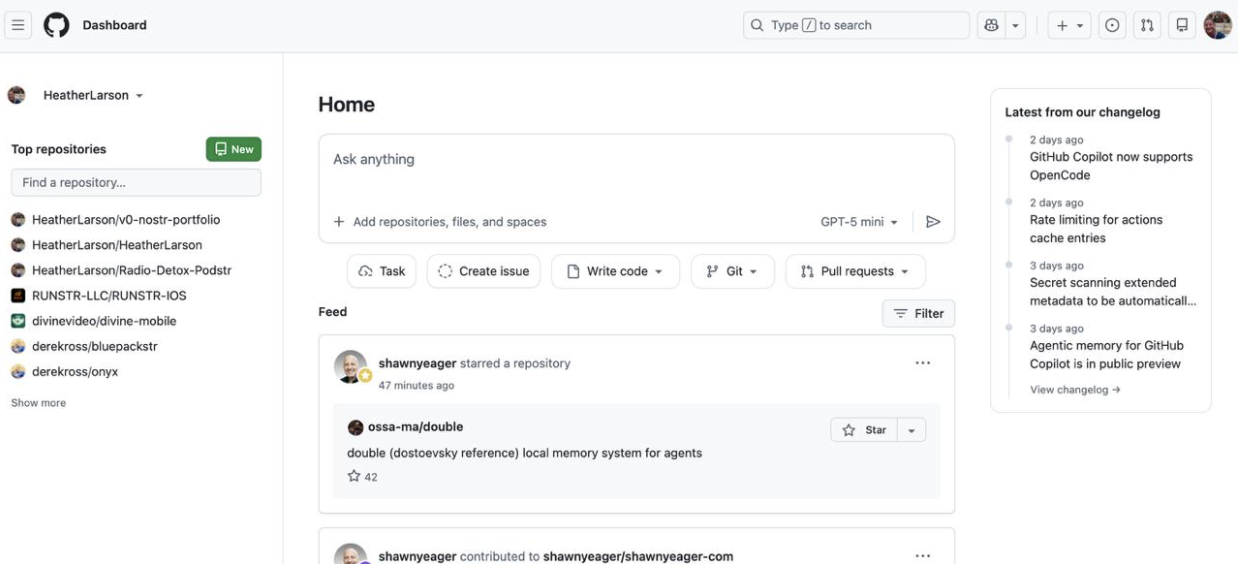
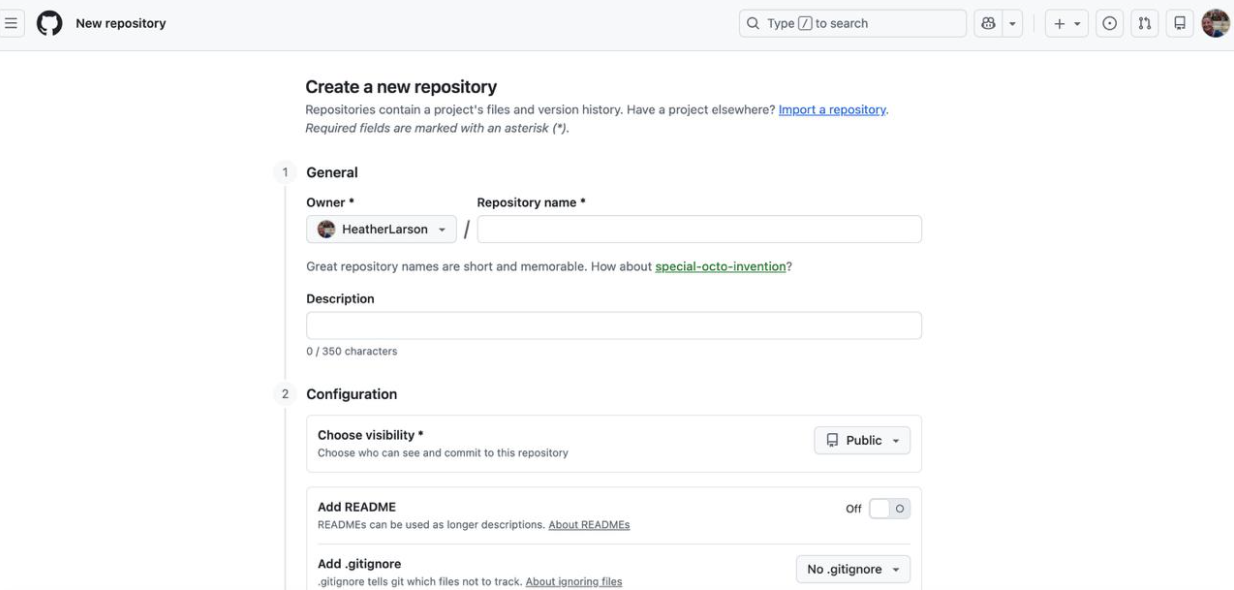
Clicking "New" will take you to the repository creation page. Here's what you need to fill out:
Repository Creation Fields
- Repository name: This will become part of your URL (e.g.,
github.com/yourusername/project-name) - Description: A brief explanation of what your project is for
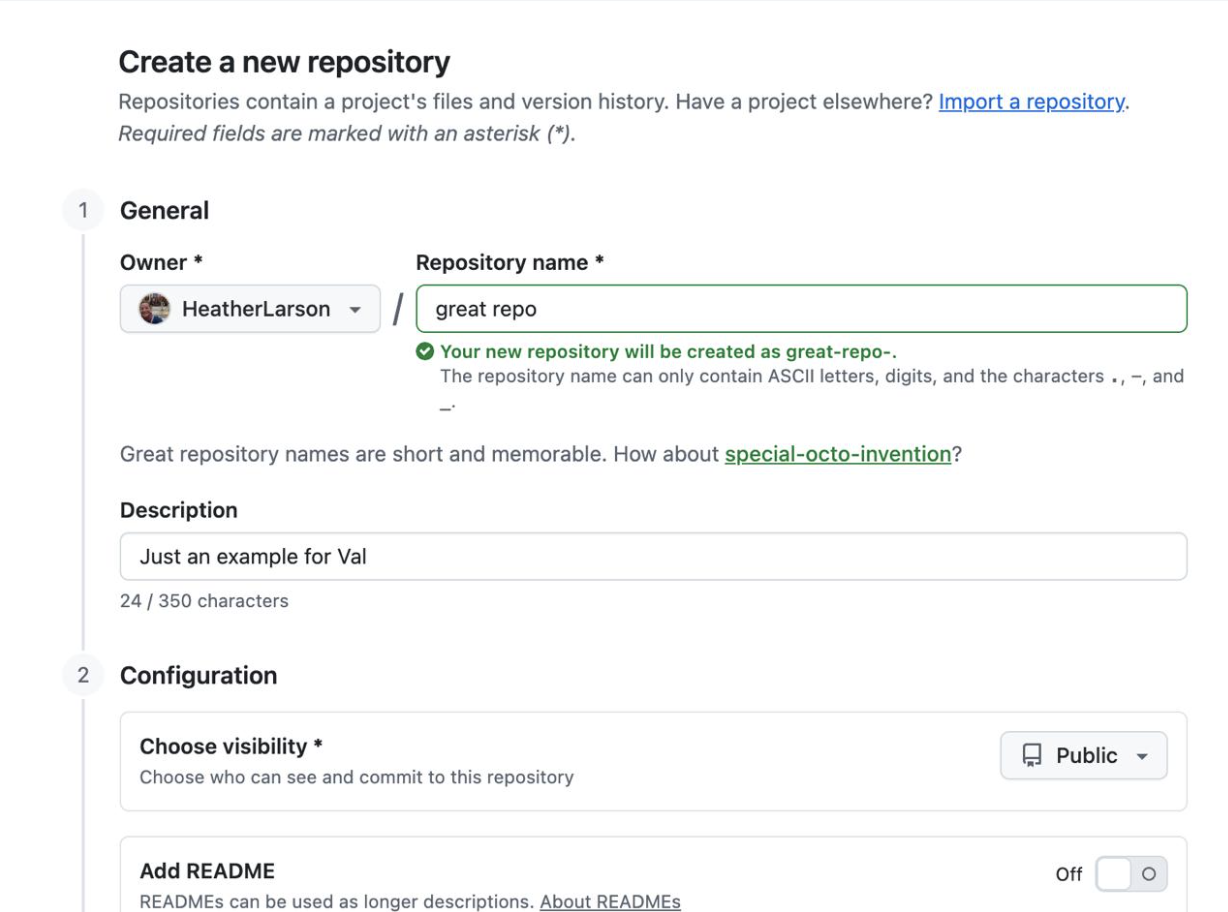
After filling in the details, scroll down and click the green "Create repository" button.
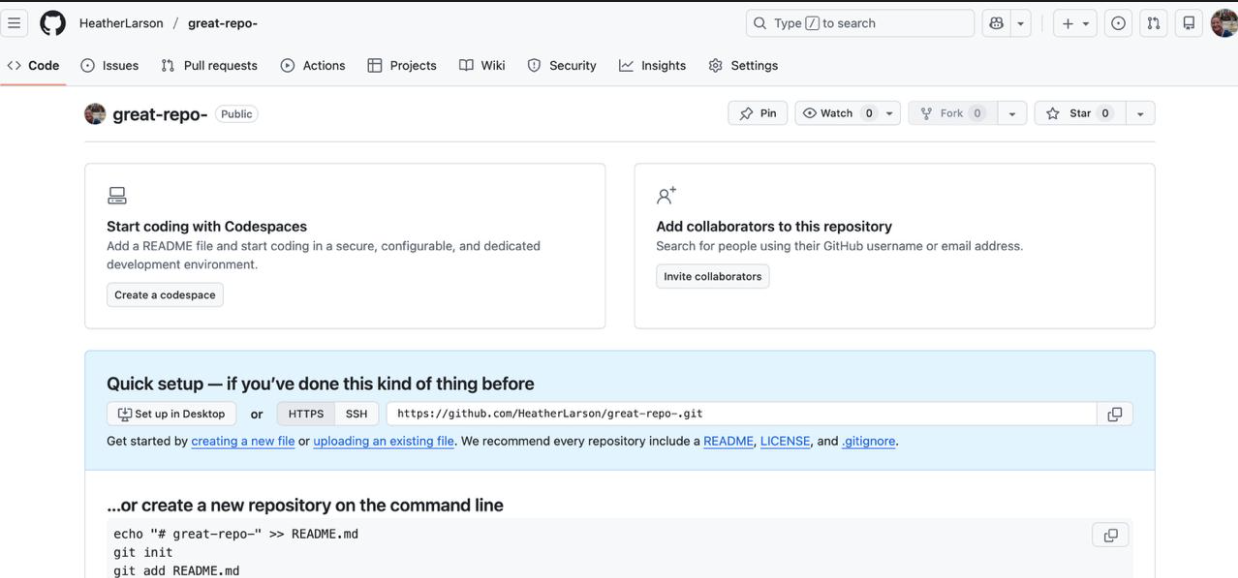
Step 3: Get Your Repository URL
GitHub will redirect you to your new repository page. The most important thing here is the blue box that shows your repository URL. Copy this URL. You'll need it for the next step.
Step 4: Connect Your Project
Now head back to your project in Shakespeare. Look for the cloud icon and select GitHub from the options.
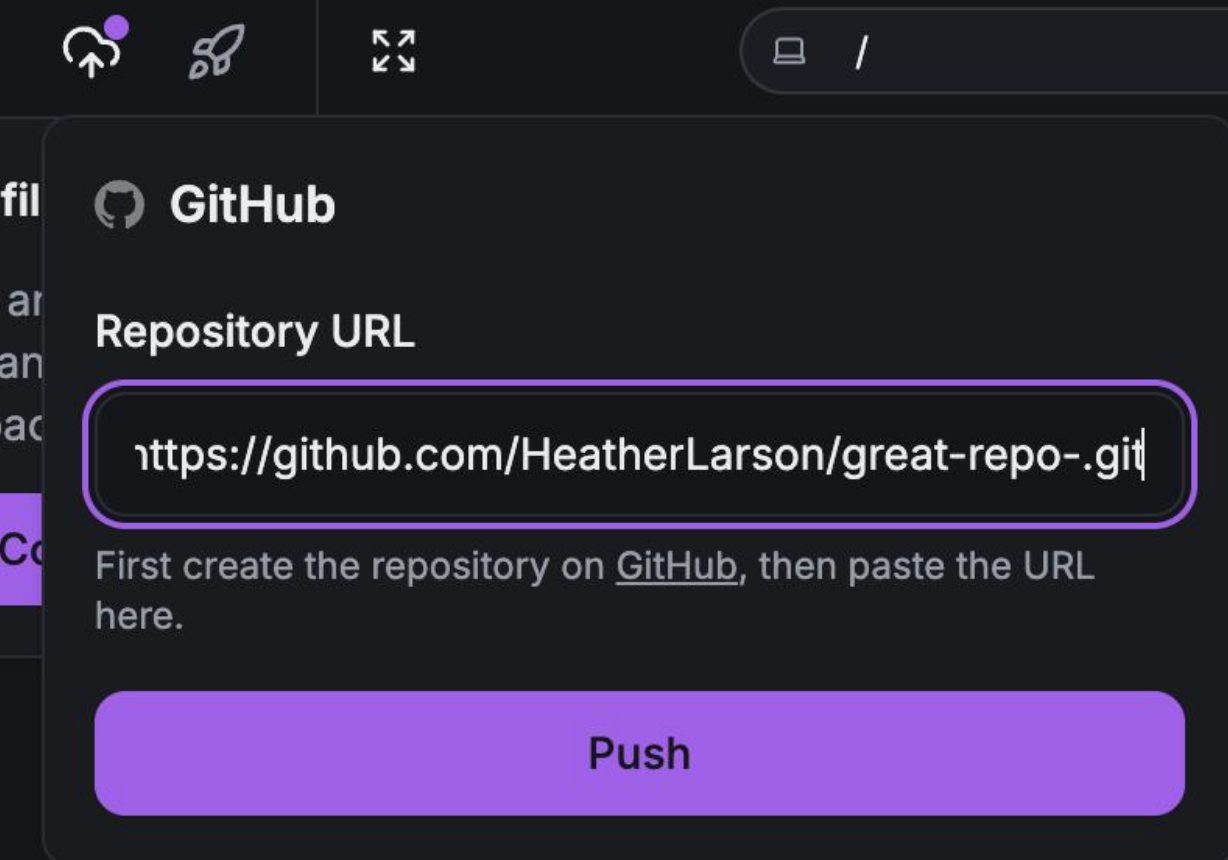
Paste the URL you copied from GitHub into the connection field and click "Push." Your project will now sync to GitHub!
Non-Technical GitHub User Pro Tips
- Once you get used to this process, it takes about 30 seconds to set up a new repository.
- Having a project backed up in GitHub will help in case you clear your cache and lose your work. Shakespeare runs locally in your browser, so this is exactly what will happen if you don't download a .zip file of your project or back it up by using Git.
- We do this to ensure your work stays private to you while you create in Shakespeare. We can't see your work and therefore can't recover it for you if you lose it.
- Git is basically version control, so you can also rollback to previous versions of your project if you take a step you don't like and want to go back in time.
Frequently Asked Questions
Q: Do I make a new repository for each project or is this the big main one?
A: Create a separate repository for each new project. This keeps everything organized and makes it easier to manage.
Q: What about gitignore, readme, and license options?
A: For simple backup purposes, you can ignore these options when first setting up your repository.
Q: Is there any way that GitHub could mess up my backups and lose them? Should I back up elsewhere?
A: GitHub is very reliable and secure. It will keep your code safe, and Shakespeare should automatically push updates. However, it's always good practice to watch for the sync indicators to ensure everything is backing up properly.
Getting started with GitHub doesn't have to be complicated. With these simple steps, you'll have your projects backed up and version-controlled in no time!
Ready to start building?
Now that you know how to back up your projects, you're ready to build with confidence.
Related Reading
Soapbox is funded by grants and donations, not ads or data sales.
Everything we build is open source and belongs to the community. Help us keep it that way.